
Version: Business Enterprise Advanced
Platform: Web Android IOS
Role: User Manager Accountant Administrator
Do you travel by bike for work? If your company reimburses these trips, your N2F administrator may have set up an expense category dedicated to bicycle mileage allowances.
You can enter your trips in just a few clicks:
- The distance is calculated automatically by the Google Maps module, using a cycling route;
- The amount is calculated automatically from the per-kilometer rate set by your company: you don't need to enter any vehicle;
- Your recurring trips can be saved as favorite trips to save time.
Note: Can't find a bike category in your expenses? Contact your company's N2F administrator.
Enter a bicycle mileage expense with Google Maps from the web application
Create a new expense and select the “Bike mileage” category (its name may vary depending on your company's settings).
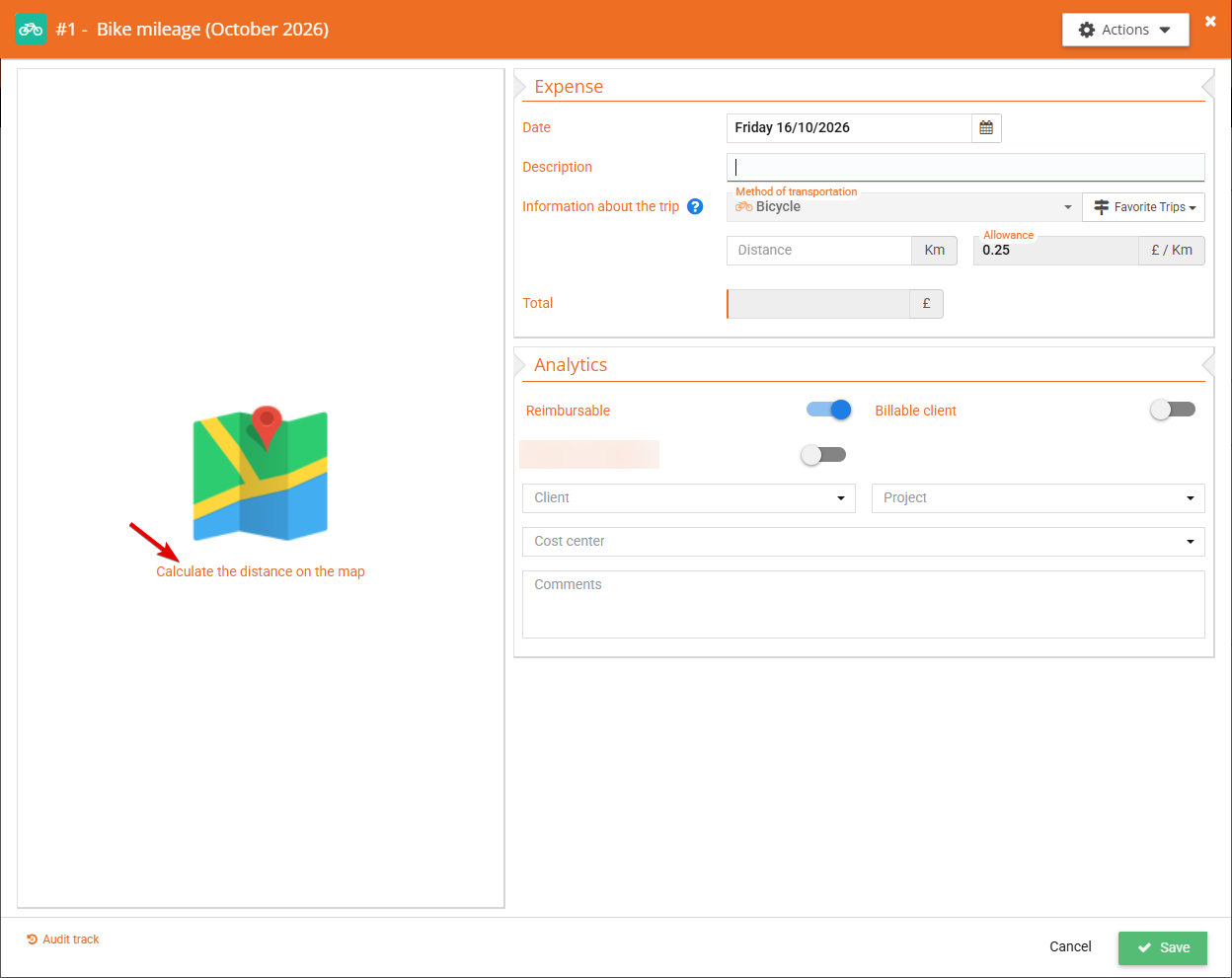
The Google Maps module is available on the left-hand side of the entry screen. Click on it to open the map:
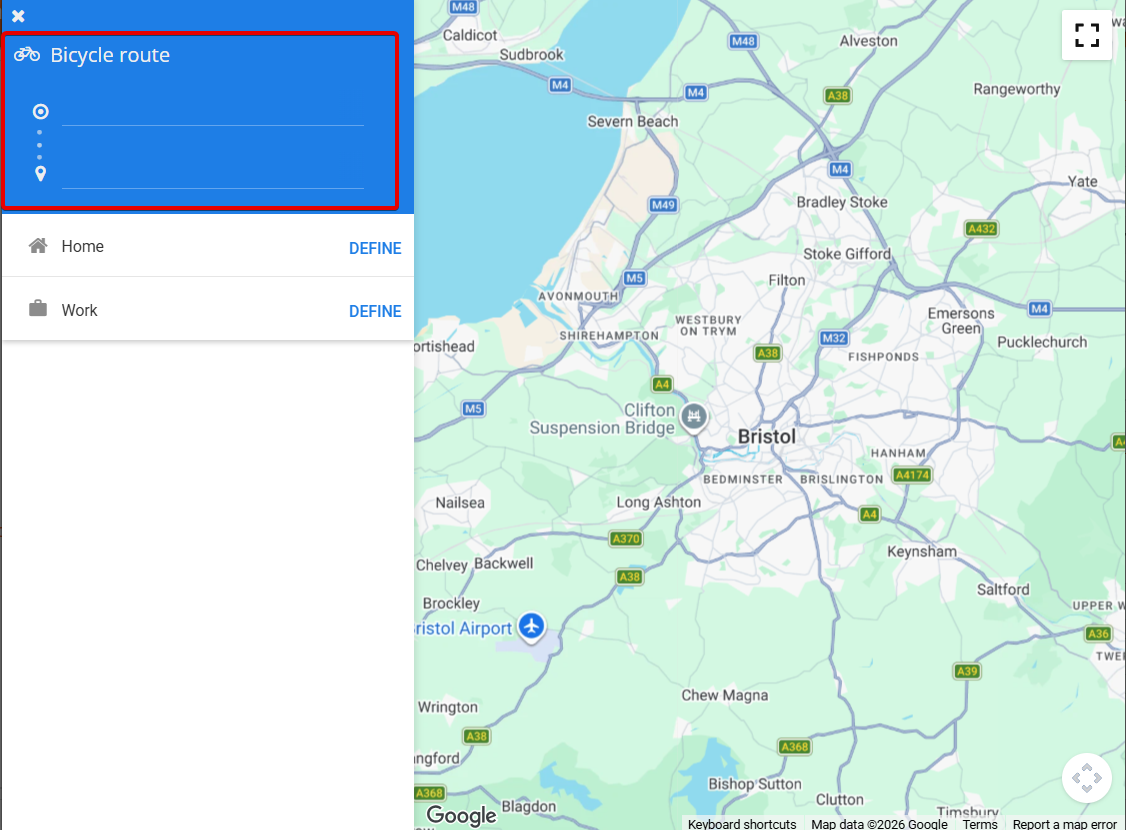
- 1: enter the start and end addresses;
- 2: add one or more stops if needed;
- 3: enable the Round trip option to double the distance and enter the round trip as a single expense;
- 4: choose your preferred route if Google Maps suggests several: the distance is updated automatically.
Thanks to bicycle mode, the suggested route is a cycling route, so the distance recorded matches the journey actually made by bike.
Click “Validate”: the distance is carried over to the expense and the amount is calculated automatically (distance × fixed amount).
Enter a bicycle mileage expense with Google Maps from your mobile
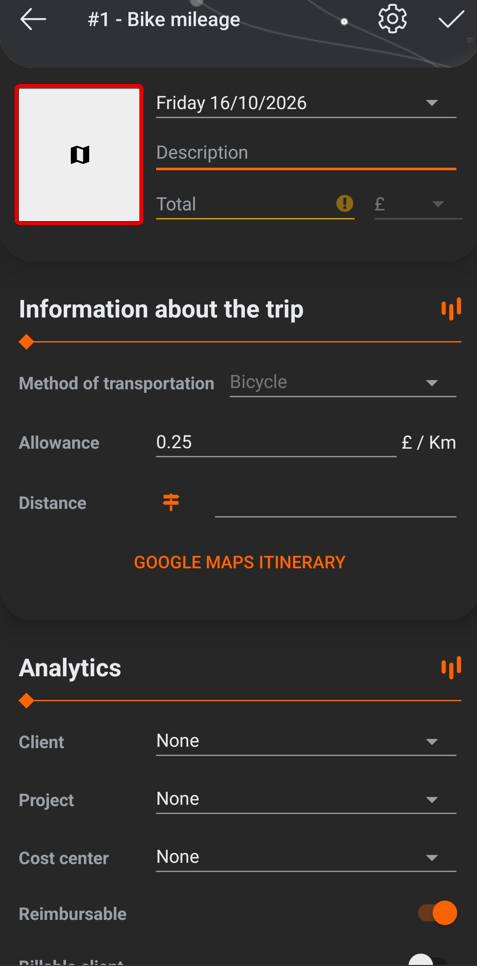
On mobile, the process is the same: create the expense, then enter the trip in Google Maps.
Only the location of the Google Maps module is different. It can be accessed via the box at the top left of the screen:
Create a favourite bike trip
For recurring trips (for example, “Home – Office”), you can save a favorite trip and reuse it in one click.
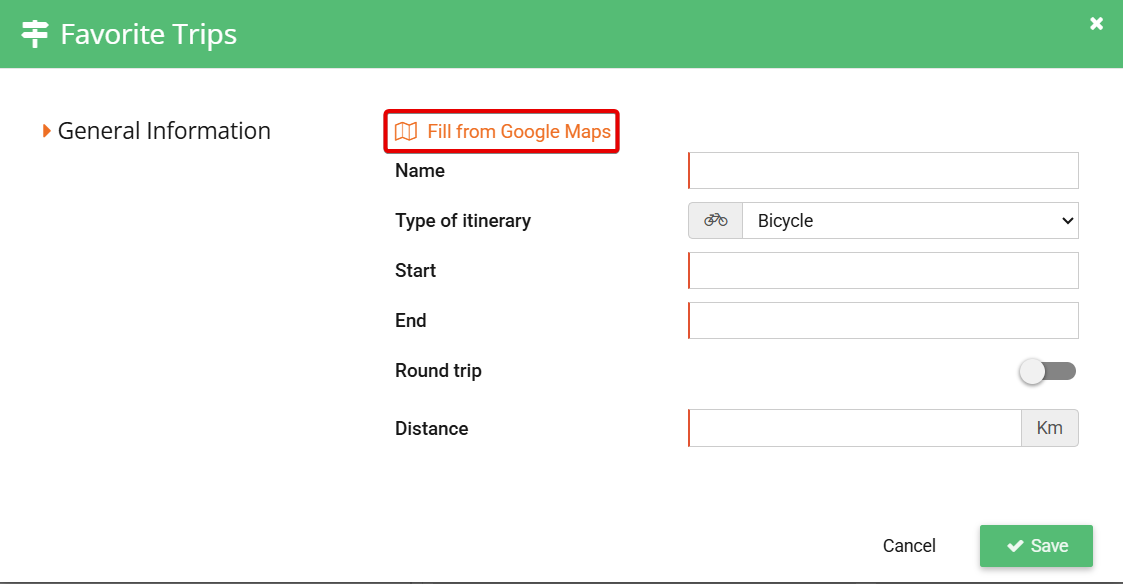
From an expense in the “Bike mileage” category, click “Favorite trips” and then “New trip”. The creation module opens:
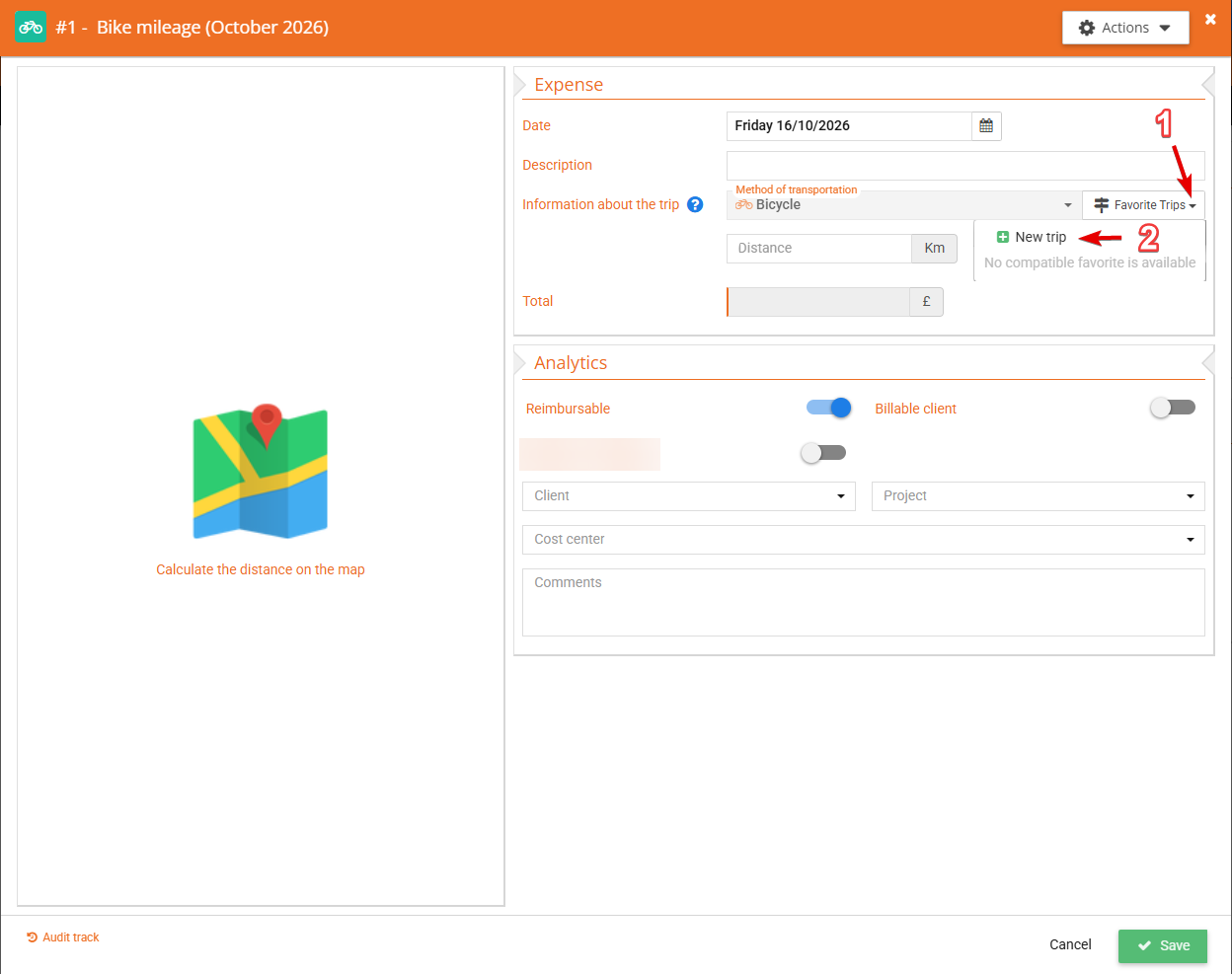
- Enter the start and end addresses in the Google Maps module, then click “Validate”;
- Give the trip a name (e.g. “Home – Office bike”) and save.
The favorite trip now appears in the list.
To use it, simply click “Favorite trips” in a “Bike mileage” expense and select the trip: the distance and amount are filled in automatically.
Tip: give your favorite bike trips explicit names (e.g. “… bike”) to distinguish them from your car trips, whose distance may be different.
For more information, please contact our support team:
support@n2f.com