
Version : Business Enterprise Advanced
Environment : Web Android IOS
Status : User Manager Accountant Administrator
You can now add the "Check-in Date" field to expenses in the "Hotel" category, allowing you to specify the duration of your employees' trips.
This field is currently hidden by default in the settings.
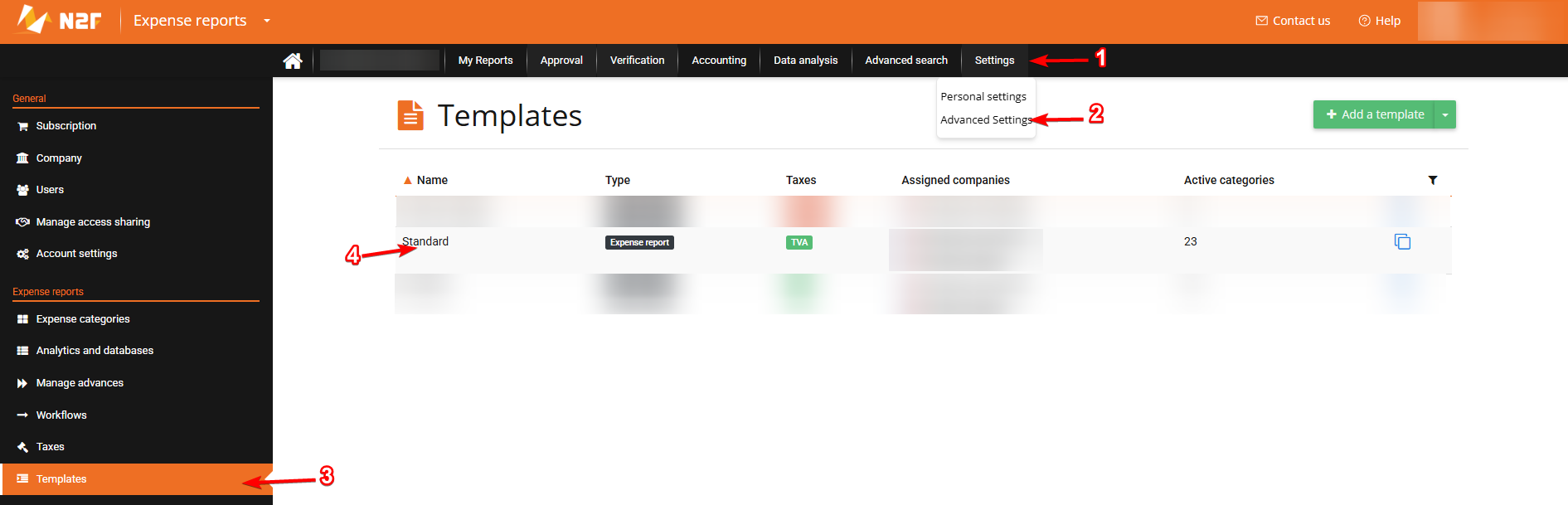
To display this field when entering an expense in the "Hotel" category, go to your settings / advanced settings / templates / select a template:
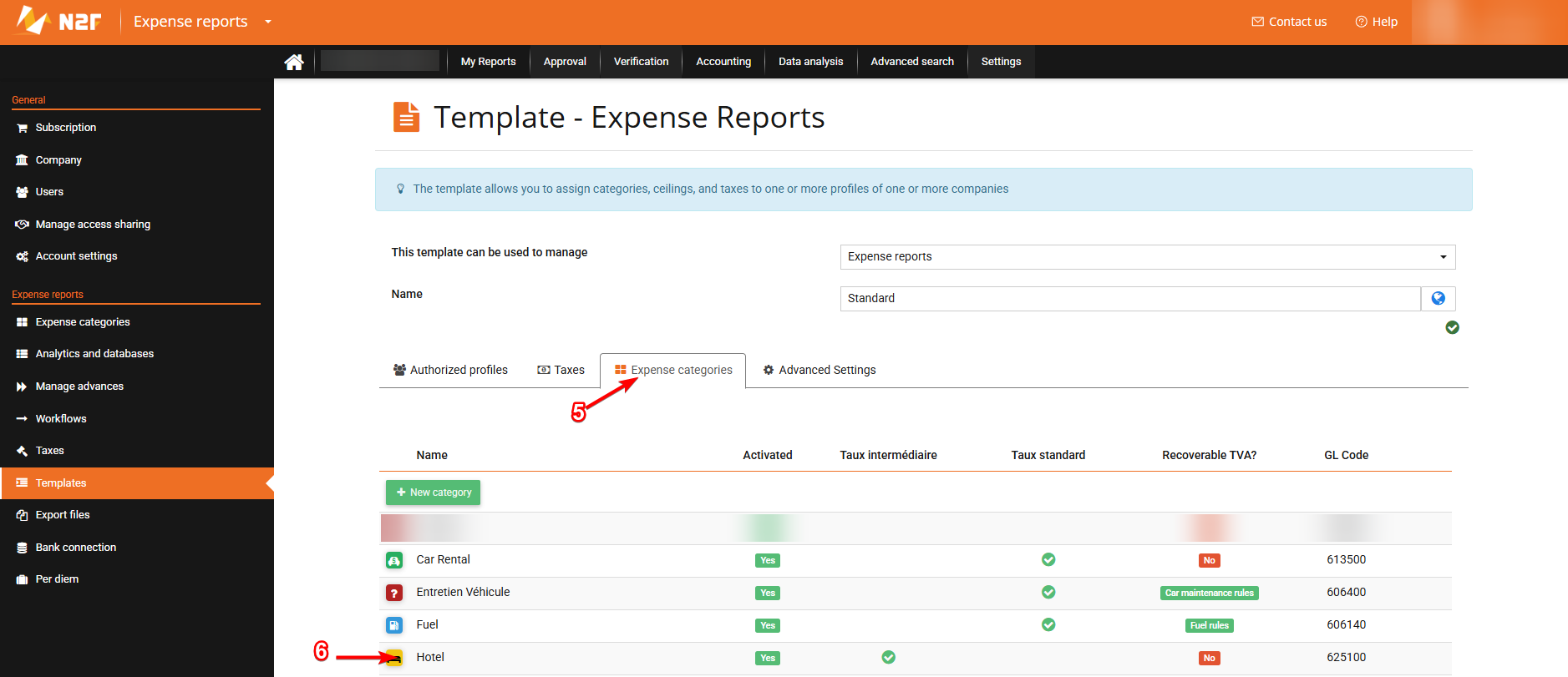
You can then go to the "Expense categories" tab and select the "Hotel" category:
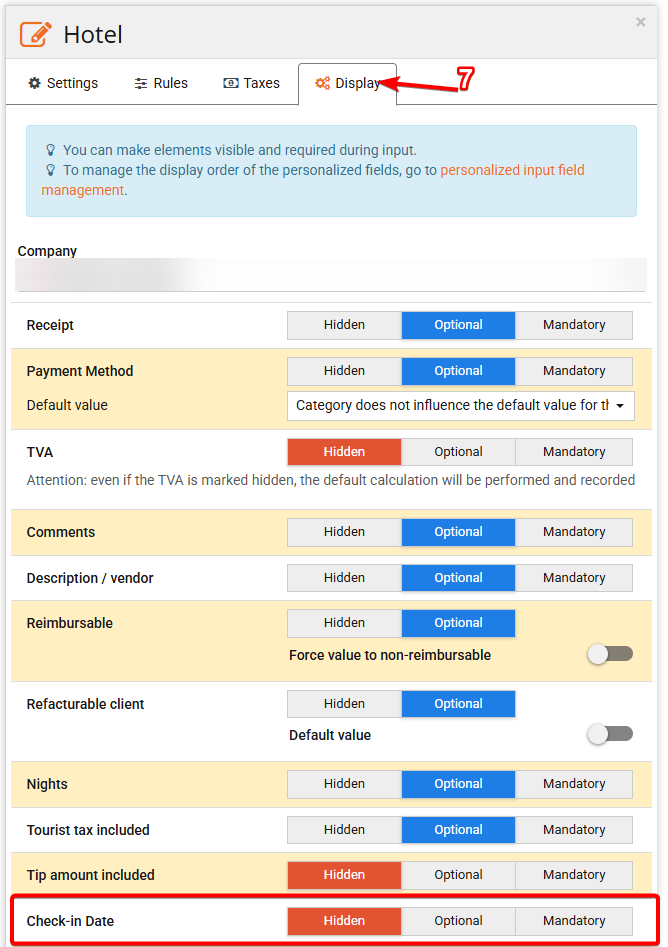
Finally, from the "Display" tab, you will be able to hide, make optional, or make mandatory the "Check-in Date" field. Then confirm your changes at the bottom of the page.
Please note: as a reminder, the display of fields available during expense entry depends on the expense report template. If you want to display the start date of stay for all your employees, make sure to apply the change to all your templates.
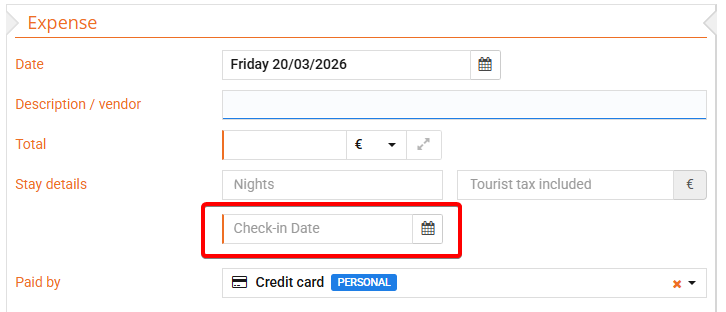
Once this field is set as optional or mandatory, your employee will be able to view and complete it when creating expenses in the "Hotel" category:
Finally, once this information has been filled in for their various expenses, you will be able to select this variable in a customizable export. We recommend the following article for more details on these exports: How to customize a data export in N2F?
If you need further details or have any questions,
Feel free to contact our support team: