
Version: Business Enterprise Advanced
Platform: Web Android IOS
Role: User Manager Accountant Administrator
When submitting your expense report, you may have encountered an error indicating the presence of an incomplete expense:
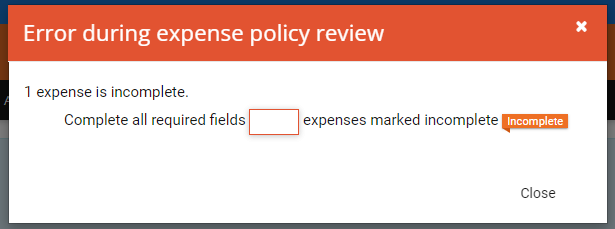
This means that a field that your administrator has made mandatory has not been filled out.
Below is a list of steps to remedy this.
1. Identify the incomplete expense(s):
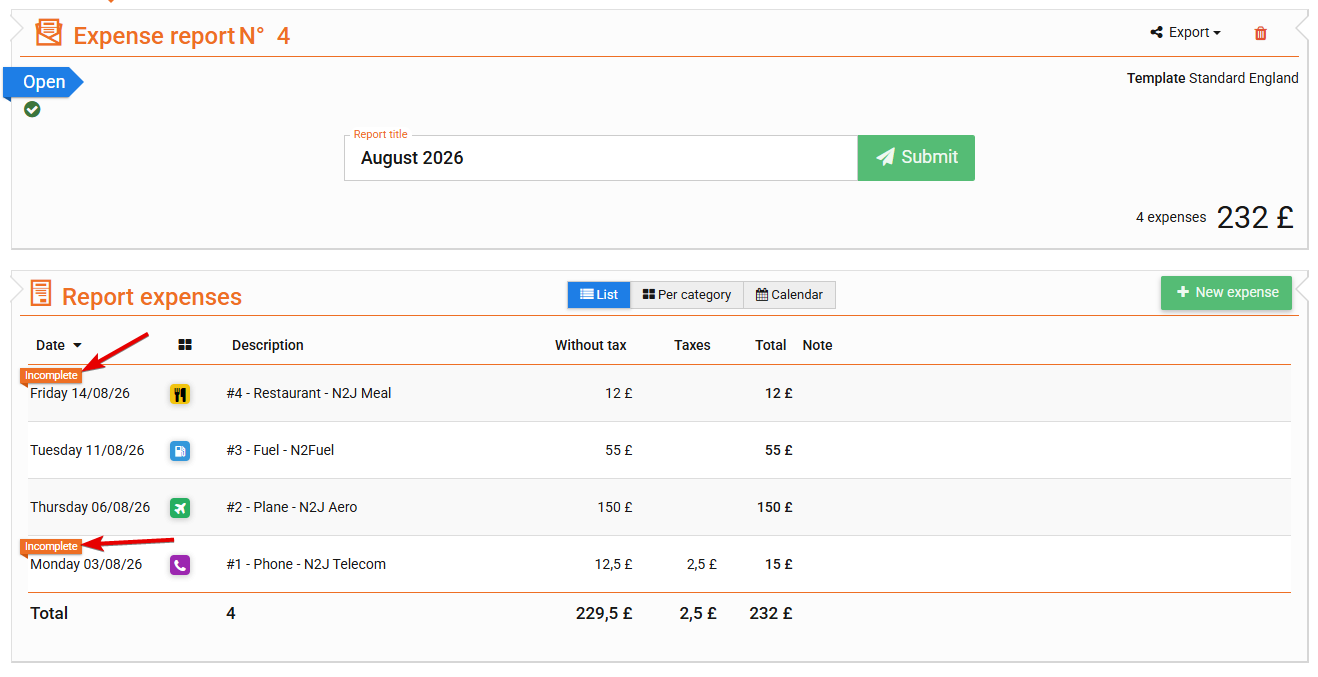
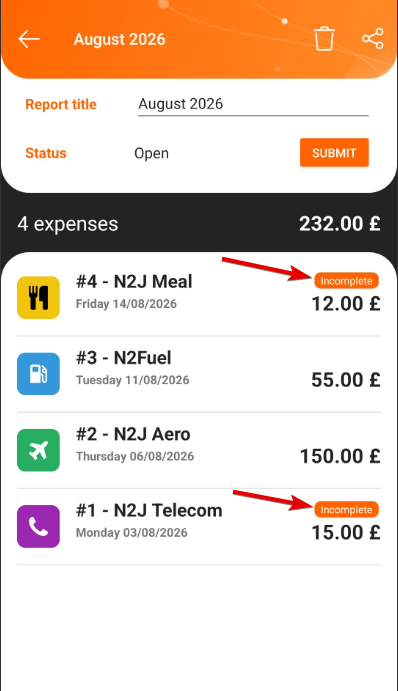
To identify the expense(s) in question, you need to review the list of your expenses in the expense report to identify the expense with the indication “incomplete”:
Web Version:
Mobile Version:
2. Correct the incomplete expense(s):
Open the relevant expense. This may concern the receipt of the expense, which will be highlighted in red, both on the web and on mobile:
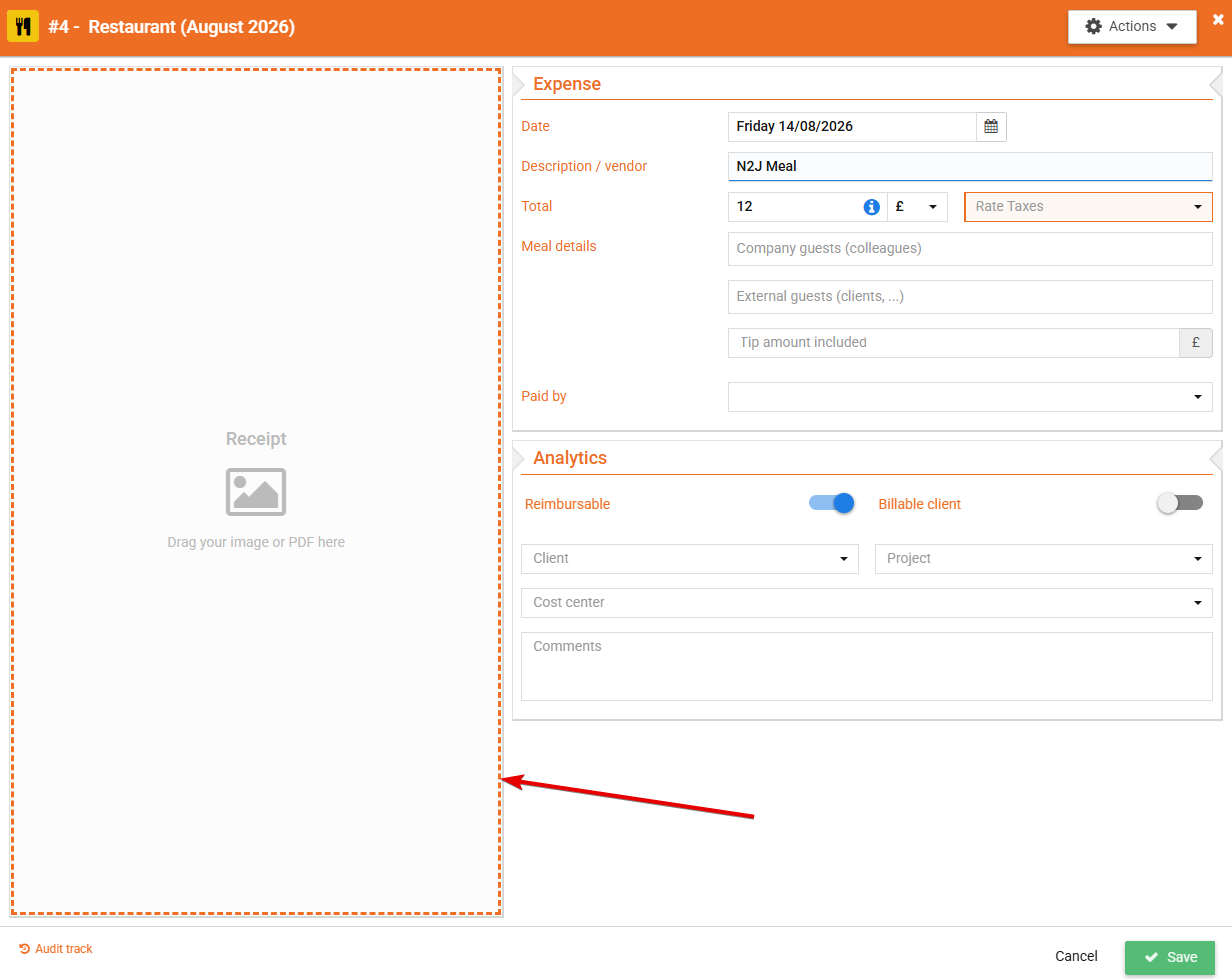
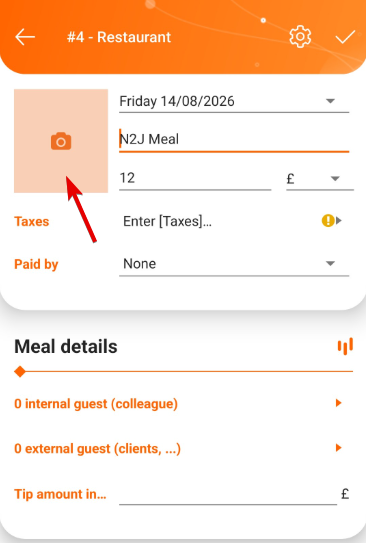
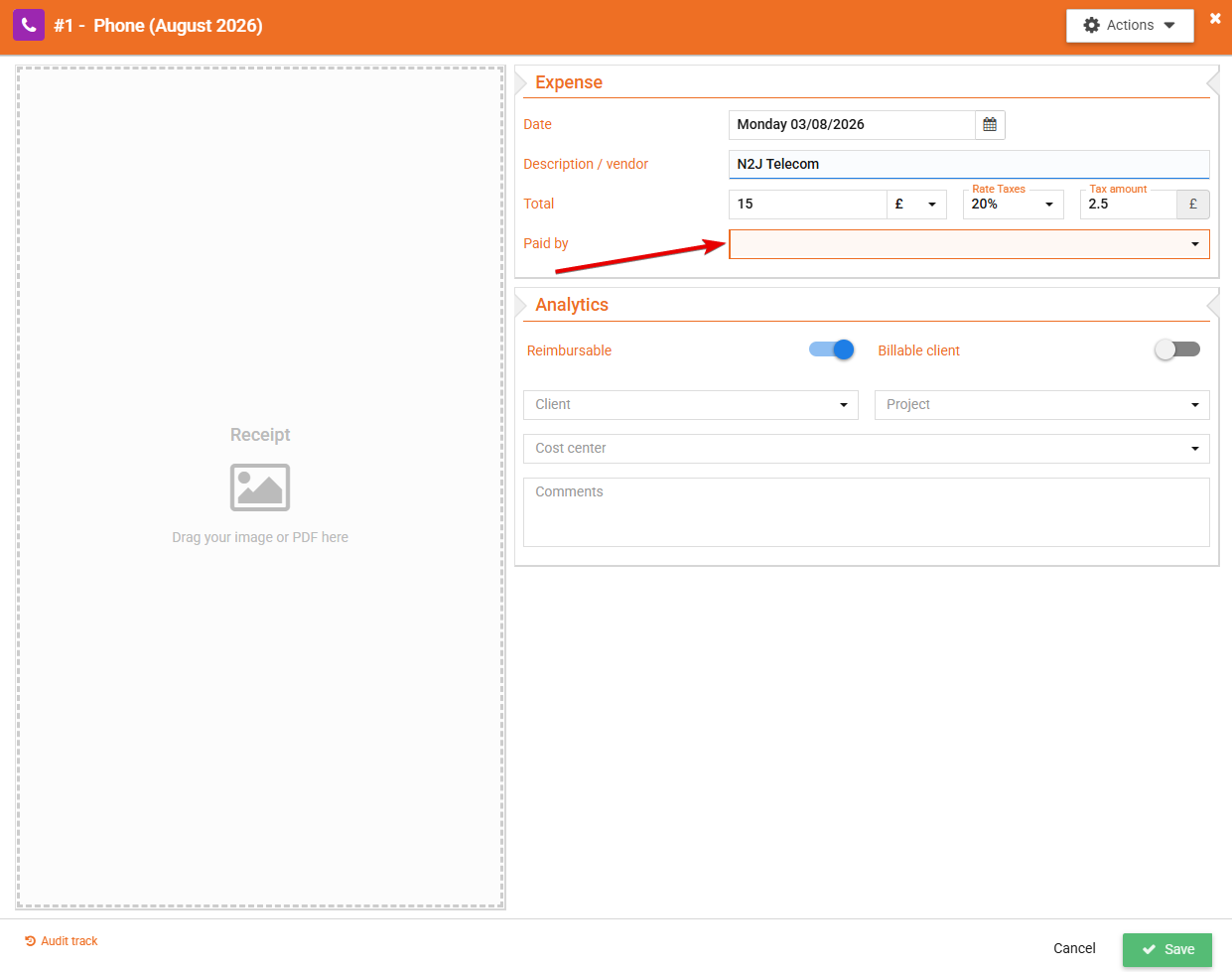
But it could also be another field specific to the chosen expense category, which will be highlighted in red on the web:
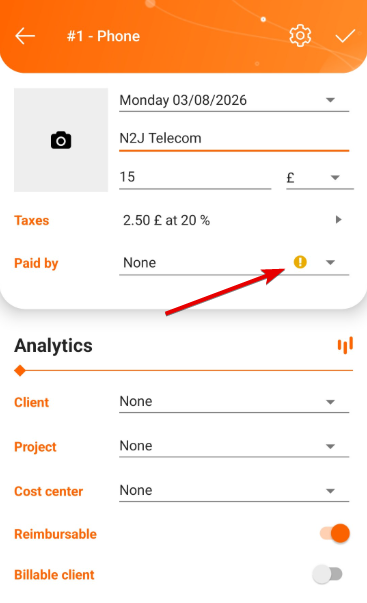
And via a yellow question mark “ ! ” on the mobile version:
What if the “incomplete” indication is present even though no field is highlighted?
This may indicate that a setting associated with the expense category was modified after you entered your expense—for example, your administrator may have made an additional field mandatory.
In this case, you can update the expense to apply the new settings by making a minor modification, such as adding a comment or changing an analytic field, and then validating the expense again.
Once this is done, the updated settings will be applied to your expense, and the “Incomplete” status should be removed.
If your expense still appears as “Incomplete” after following these steps, please do not hesitate to contact our support team using the contact details below:
By phone: +33 (0)4 28 38 30 45
+1 (505) 204-7434 (USA)
By email: support@n2f.com